ABOUT GBC
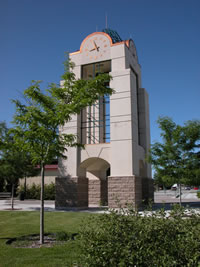
Welcome to Great Basin College!
Great Basin College values you! Valuing what we have in common and our differences means we will foster a college climate of mutual trust, tolerance, informed discourse and always seek to promote GBC as a "safe space" to explore new ideas and perspectives with opportunities for you to grow, learn and be successful in a friendly, supportive campus environment. GBC enriches people's lives by providing student-centered, post-secondary education to rural Nevada. GBC students enjoy outstanding academic programs, smaller class sizes, and excellent faculty who really care about our students. We are GBC!
ADMISSIONS

ACADEMICS

For High School Students
STUDENT SERVICES

GBC ONLINE

Great Basin College is "The Gold Standard in the Silver State" when it comes to long-distance education and online education delivery. GBC offers hundreds of classes and a diverse array of certificate and degree programs fully online and fully affordable!
COMMUNITY
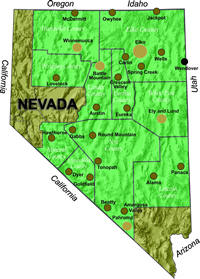
Great Basin College wants to be your choice for higher education. GBC offers associate and baccalaureate level instruction in career and technical education and academic areas. About 4,000 students are enrolled annually online from across the country and on campuses and centers across 86,500 square miles, two time zones, and ten of Nevada's largest counties. We border Arizona, Oregon, Idaho, Utah, and California. We are GBC!
INFORMATION

Need to find COVID-19 information quick? Check out our Coronavirus (COVID-19) Information and Resources page!

RESOURCES

Degree Audit: What-If (WHIF) Report
The degree audit, or What-If (WHIF) Report, describes your progress toward earning a degree or certificate at Great Basin College. It compares the requirements for a specific degree to the courses that you have already taken, and in which you are currently enrolled. If you submitted transcripts from other colleges, your transfer courses should appear on the WHIF as well, once those transcripts have been evaluated and applied to your record.
Caution
While WHIFs are a great tool, you should always meet with your advisor as well in order to avoid errors, such as taking unnecessary classes or missing a class that is not offered every semester.
How Do I Check/Change My Currently Declared Major?
- Log into the MyGBC Self-Service Center.
- Click the Student Center button.
- At upper left, click the My Academics link. You'll see a blue box at right titled My Program. Your currently declared major will be listed there.
- It is essential that you update your degree objective when it changes and remove objectives in which you are no longer interested. To change your major contact the Admissions & Records Office or your local campus, or request a Program/Plan Change on the My Academics page of your Student Center.
How Do I Run My What-If (WHIF) Degree Audit Report?
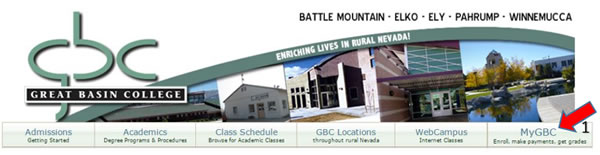
- Log into your my GBC Self-Service Center from www.gbcnv.edu
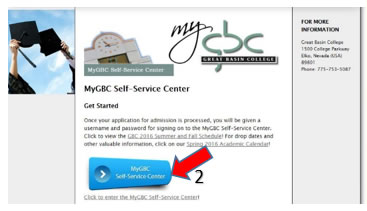
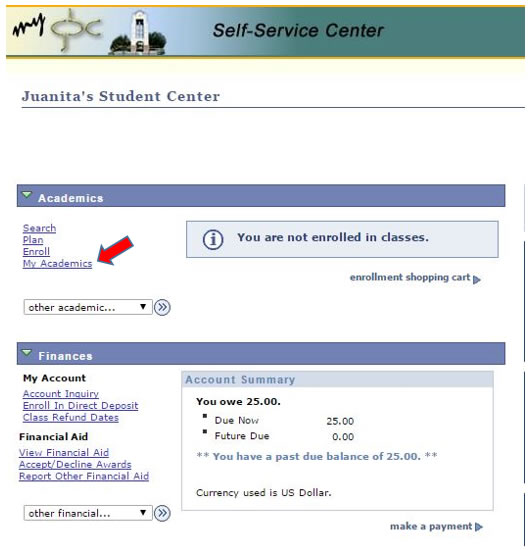
- From your MyGBC Self-Service Center, select “My Academics”
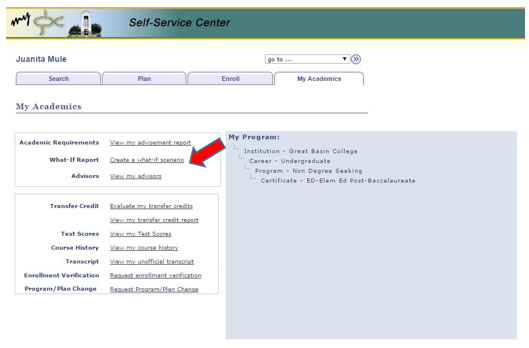
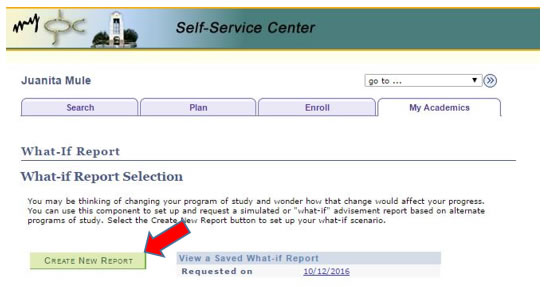
- Select “Create a what-if scenario”
- Select “CREATE NEW REPORT”
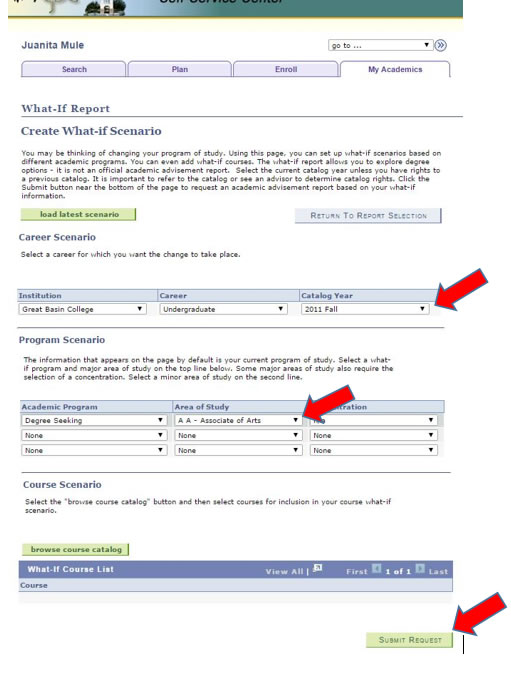
- Select “Catalog Year” and “Area of Study” from drop-down menus, then click “Submit Request”. (Only create a WHIF for one Area of Study at a time)
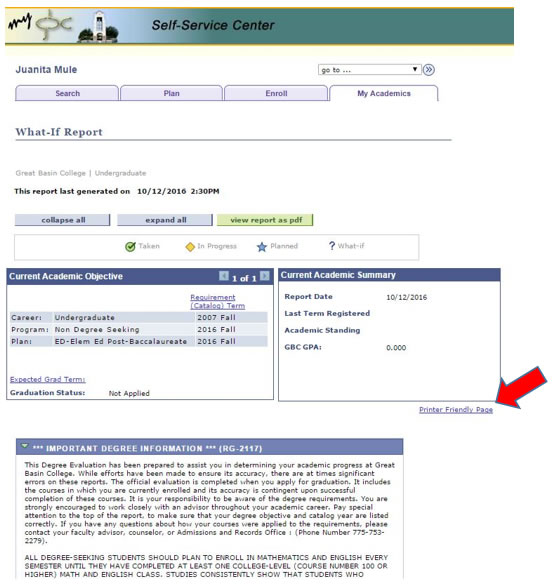
- Always select the “Printer Friendly Page” for viewing and printing.
- And remember: WHIFs are great, but they are not a substitute for meeting with an advisor. Also, if you decide you want to change your major, be sure to do it officially through the Admissions and Records Office so that your catalog year is guaranteed.
For More Information Contact
Great Basin College
1500 College Parkway
Elko, Nevada (USA) 89801
Why Great Basin College
Great Basin College wants to be your choice for higher education. GBC offers associate and baccalaureate level instruction in career and technical education and academic areas. About 4,000 students are enrolled annually online from across the country and on campuses and centers across 86,500 square miles, two time zones, and ten of Nevada's largest counties. We border Arizona, Oregon, Idaho, Utah, and California. We are GBC!